From upload to Manager entry
Upload, check and send documents: the documents page, the verify screen, tax, and sync.
The daily routine has three steps: upload, check, send. This page walks through all three on the screens you will use every day.
Uploading
Each Manager connection has its own entry in the left sidebar. Click it to open that business's documents. If the connection has several entry types enabled, each type has its own tab, and the tab you upload on decides what the document becomes in Manager: a file uploaded on Payment becomes a payment; the same file on Purchase invoice becomes a purchase invoice.
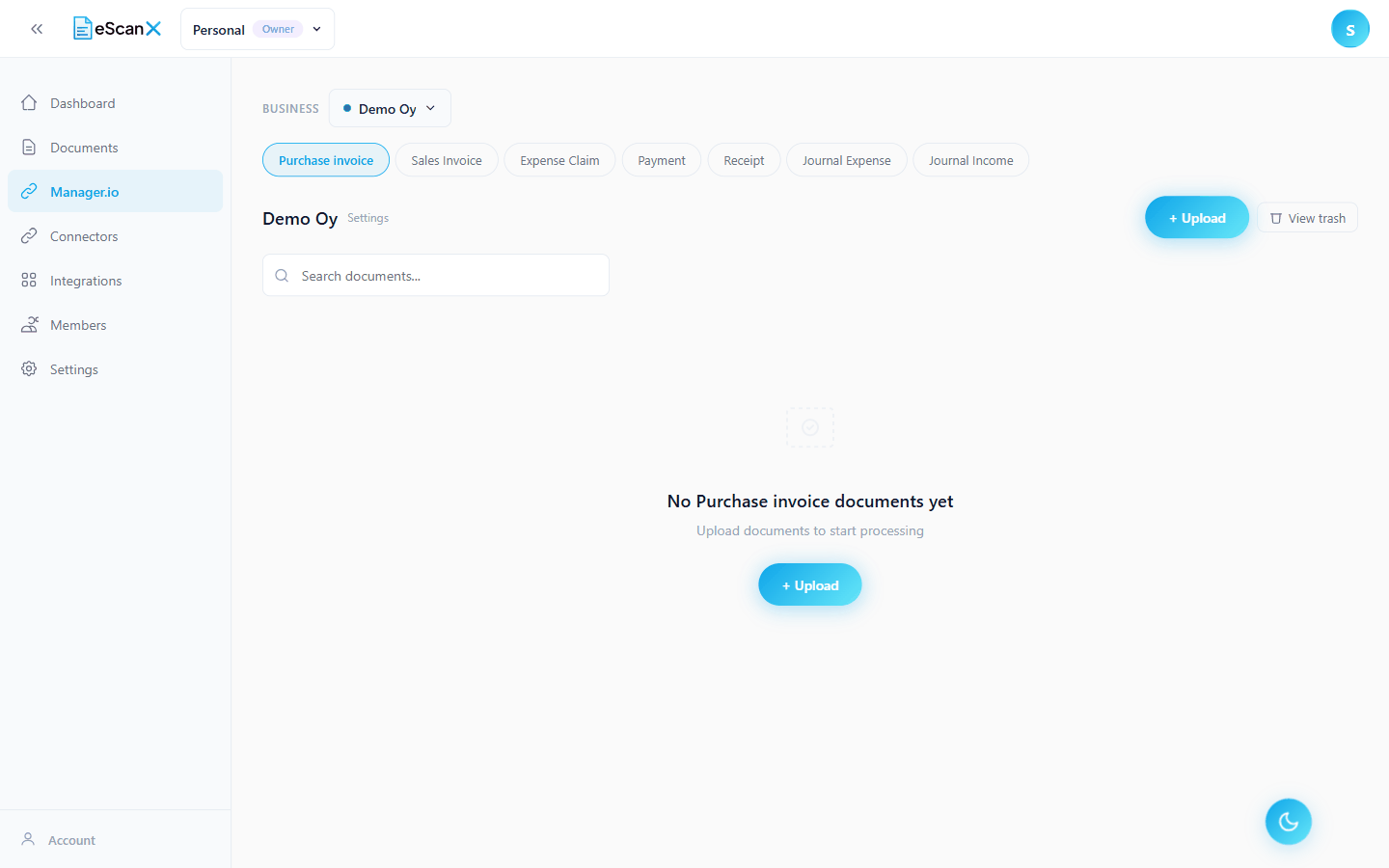
You can upload up to 50 files at once, 25 MB each. Everything you choose in the upload window applies to all files in that batch.
Some tabs ask one or two extra questions, because Manager needs that information to book the entry. All of them are optional: skip them and the connection's defaults apply, and you can still change everything on the verify screen.
| Tab | Extra questions | In plain words |
|---|---|---|
| Purchase invoice, Sales invoice | none | Just drop the files |
| Expense claim | Paid by | Which person paid this out of their own pocket |
| Payment | Payment for, Paid from account | What kind of payment this is, and which bank or cash account the money left |
| Receipt | Received for, Received in account | The same two questions for money coming in |
| Journal expense | Credit to, Credit account | Which side balances the entry |
| Journal income | Debit to, Debit account | Which side balances the entry |
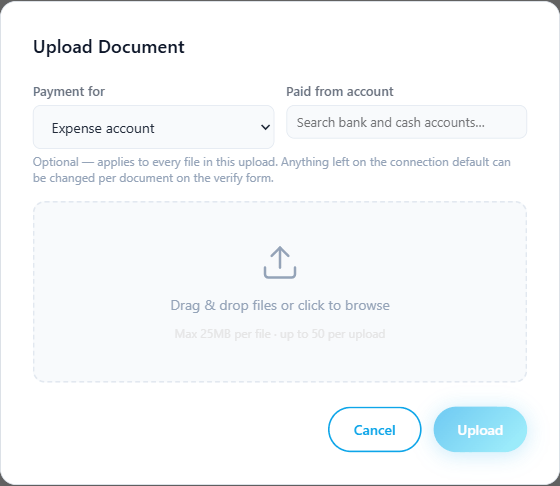
A Cleared question appears only when the chosen bank account supports pending transactions in Manager. If you change your answer to "Payment for", any account or person you had picked is cleared so nothing wrong is sent by accident.
Document statuses
| Status | What it means | Can you edit it? |
|---|---|---|
| Queued / Processing | eScanX is reading the file; the list updates by itself when it is done | No |
| Draft | Read successfully; waiting for someone to check it | Yes |
| Auto Verified | The automatic check passed; confirmed without a person | Yes |
| User Verified | A person confirmed it; their name is recorded | No |
| Synced | Sent to Manager; it exists there as a real entry | Only "sync again" |
| Extraction Failed | The file could not be read; the row shows why | No |
Deleted documents go to the trash (Trash in the sidebar) and stay there for 7 days (unless your organization has changed this).
Checking a document
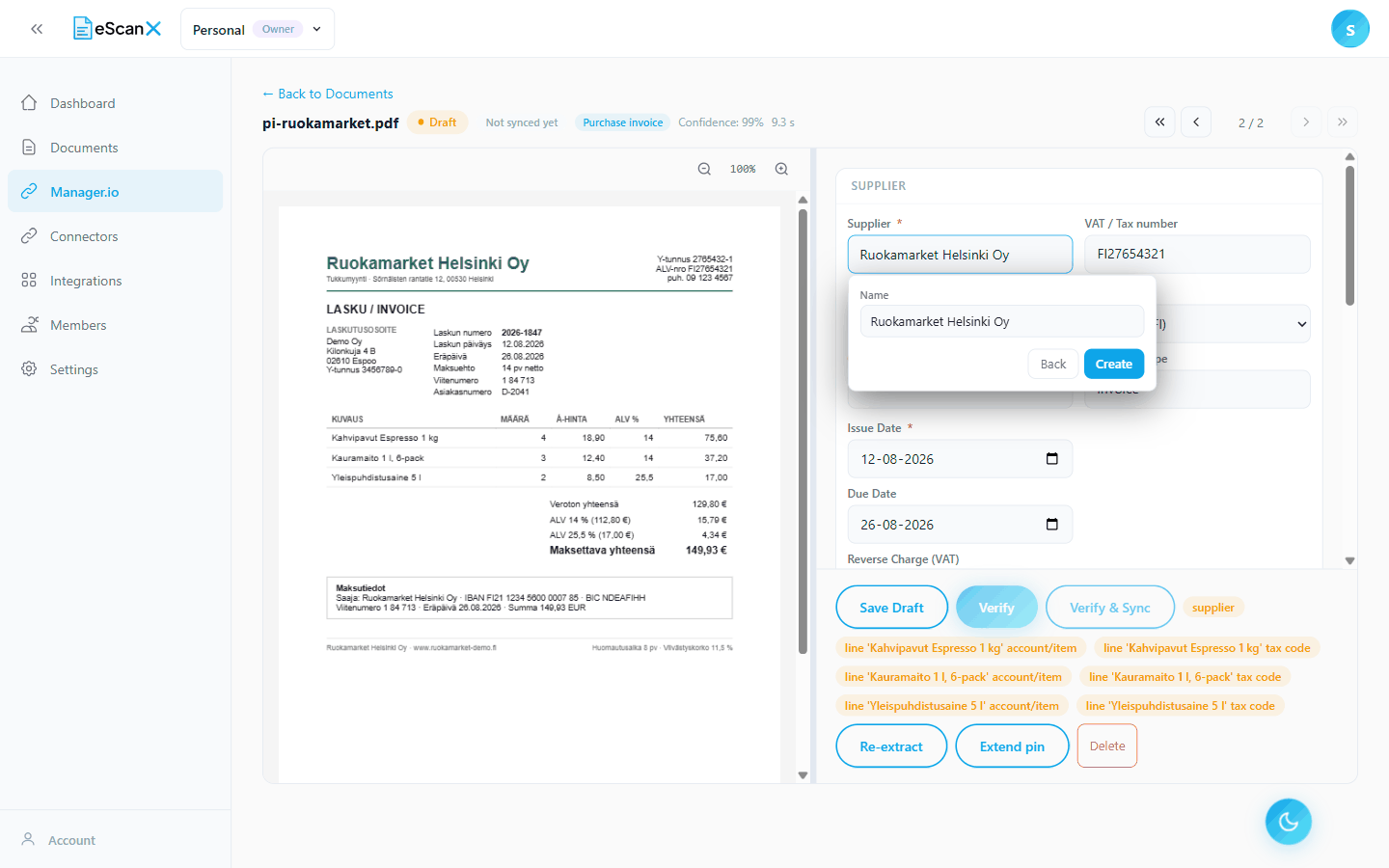
Click a document to open it. The original file is on the left, the extracted information on the right. The top bar shows the status, the sync state, the entry type and the reading confidence, plus arrows to the next and previous document.
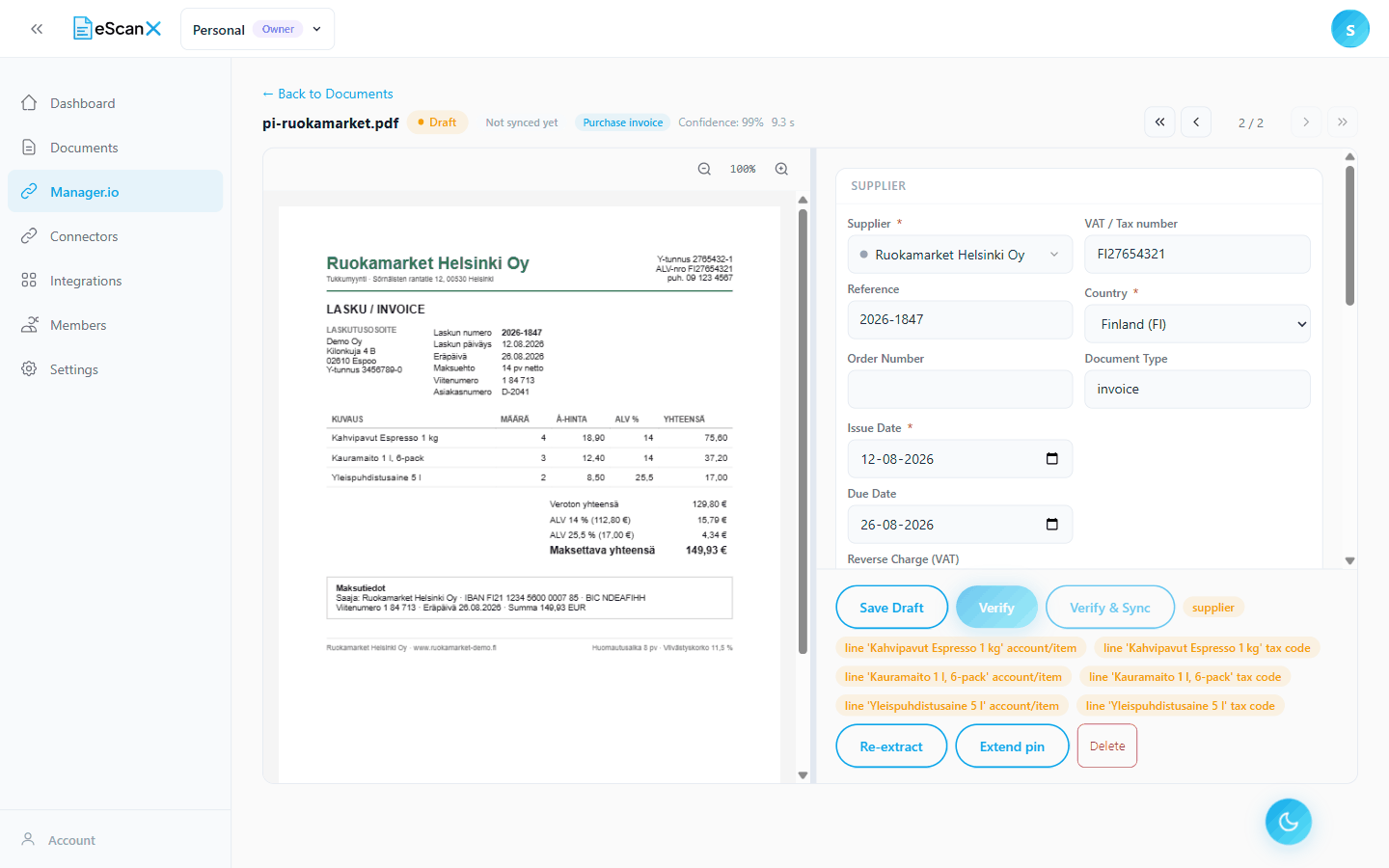
Viewer controls: zoom with the buttons or Ctrl + mouse wheel, drag to pan when zoomed in, double-click to jump between 100 and 200 percent.
All calculations come from the server. About half a second after you stop typing, eScanX sends your working copy to the server and shows the recalculated totals, the tax breakdown and the list of things that still need attention.
Reading the screen
| What you see | What it means |
|---|---|
| A picker with a green dot (hover: "Matched") | Linked to the real thing in Manager: a supplier, account or tax code |
| A picker with a grey dot (hover: "Not resolved") | Only the text read from the document; nothing in Manager is linked yet |
| "Select…" | Nothing was read and nothing is linked; you need to pick |
| A grey calculated number | Calculated by the server; updates as you type; cannot be edited |
| "printed 129.80" or "AI read 149.93" next to a field | What the document itself says, for reference |
| A small label instead of a picker (for example "Kept in cost") | The tax question for that line is already answered (see Tax below) |
What still needs doing
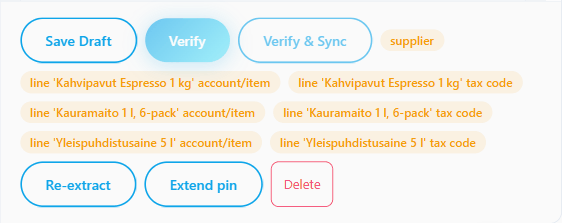
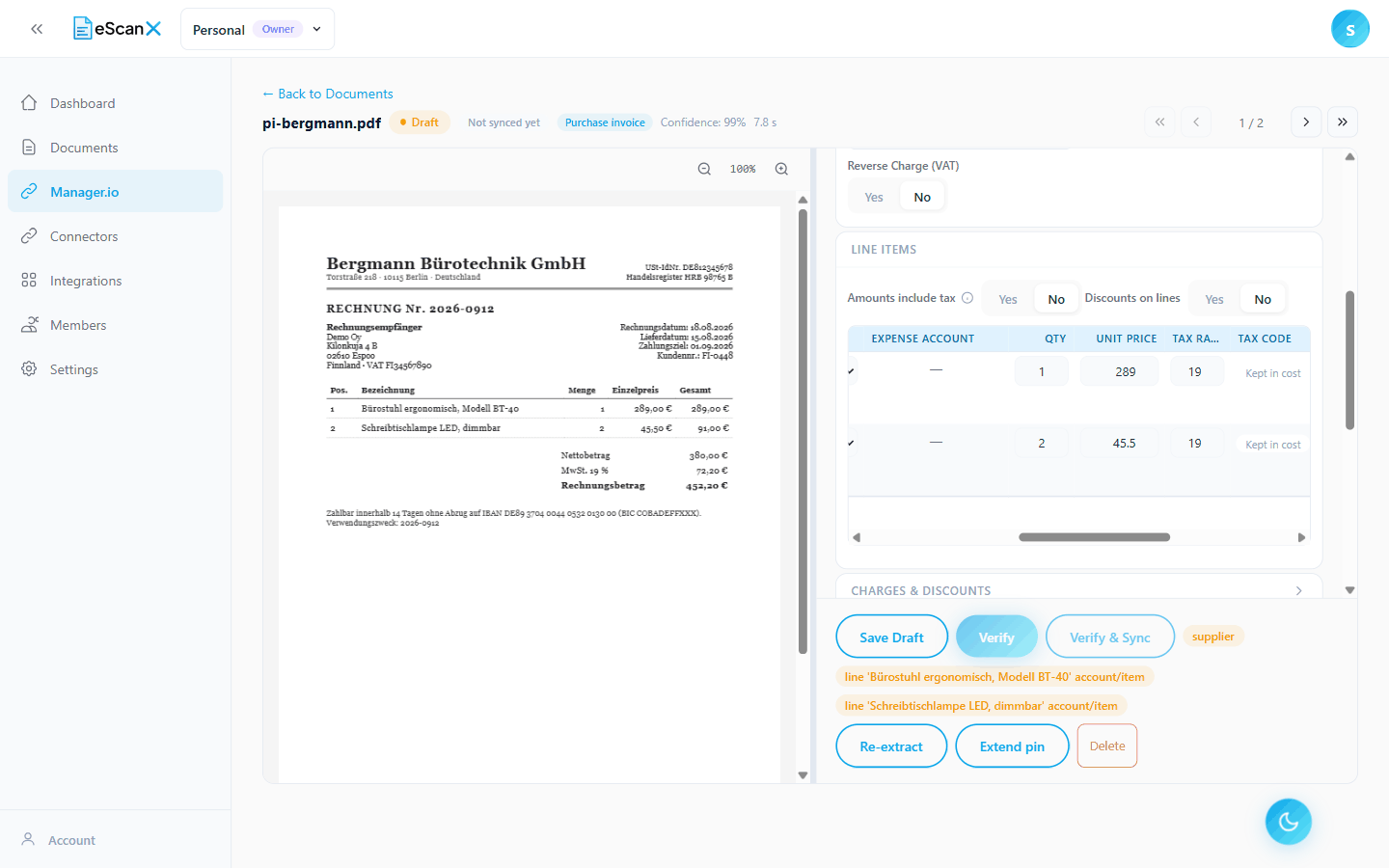
Until everything is filled in and linked, the Verify button is off and orange notes next to it list exactly what is missing, line by line. They disappear one by one as you fix things.
Linking suppliers, accounts and tax codes
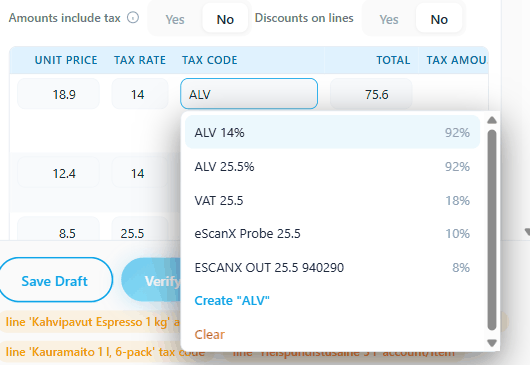
Supplier, account and tax-code fields are pickers. Click one to see suggestions from Manager with a match score, or type to search.
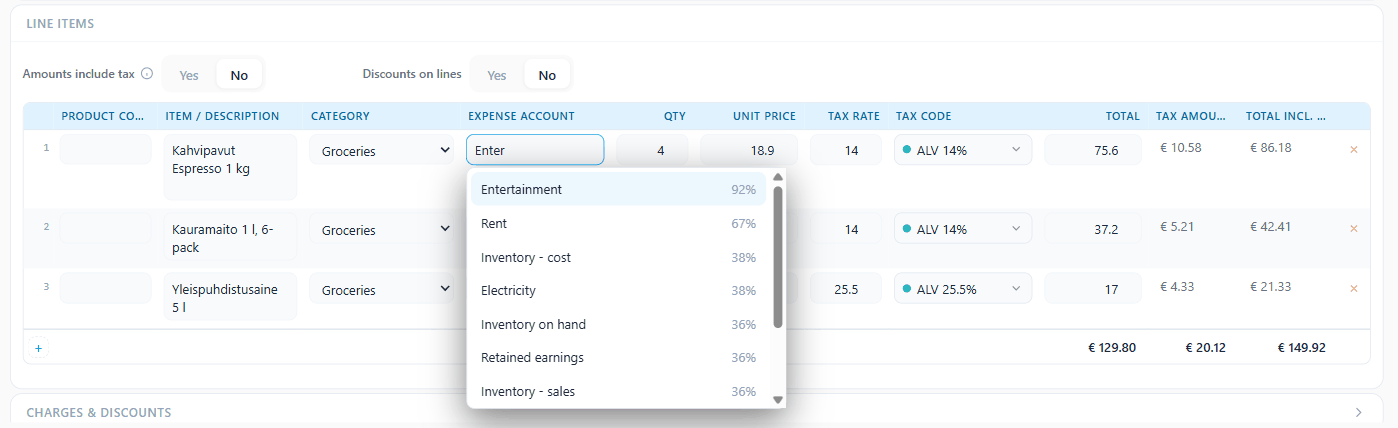
If the right entry does not exist in Manager yet, the last row of the picker creates it in Manager without leaving eScanX.
The line items table
Each line has a posting choice ("Item" links to a Manager inventory item, "Expense Account" books to an account), a category, quantities and prices, and a tax code. The grey columns on the right are calculated by the server.
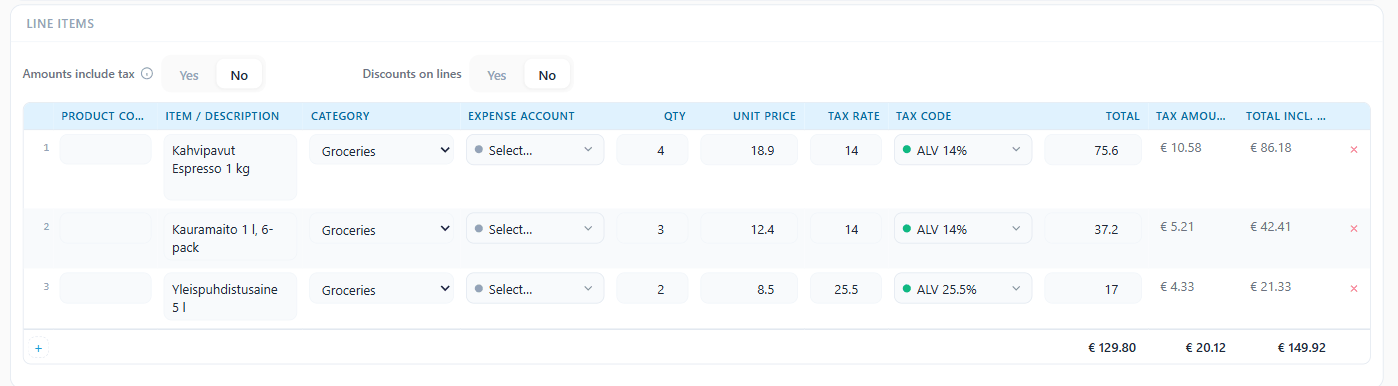
- New lines start empty. Delete a line with the small x at its end.
- On payment and receipt documents, changing "Payment for" changes the form itself: the field for the other party switches between a supplier picker, an employee picker or plain text, whichever fits the chosen kind.
Totals
The Totals area shows the calculated sums next to what the document printed, the tax per tax code, and the verdict: Reconciled, with the exact amount the entry will book at.
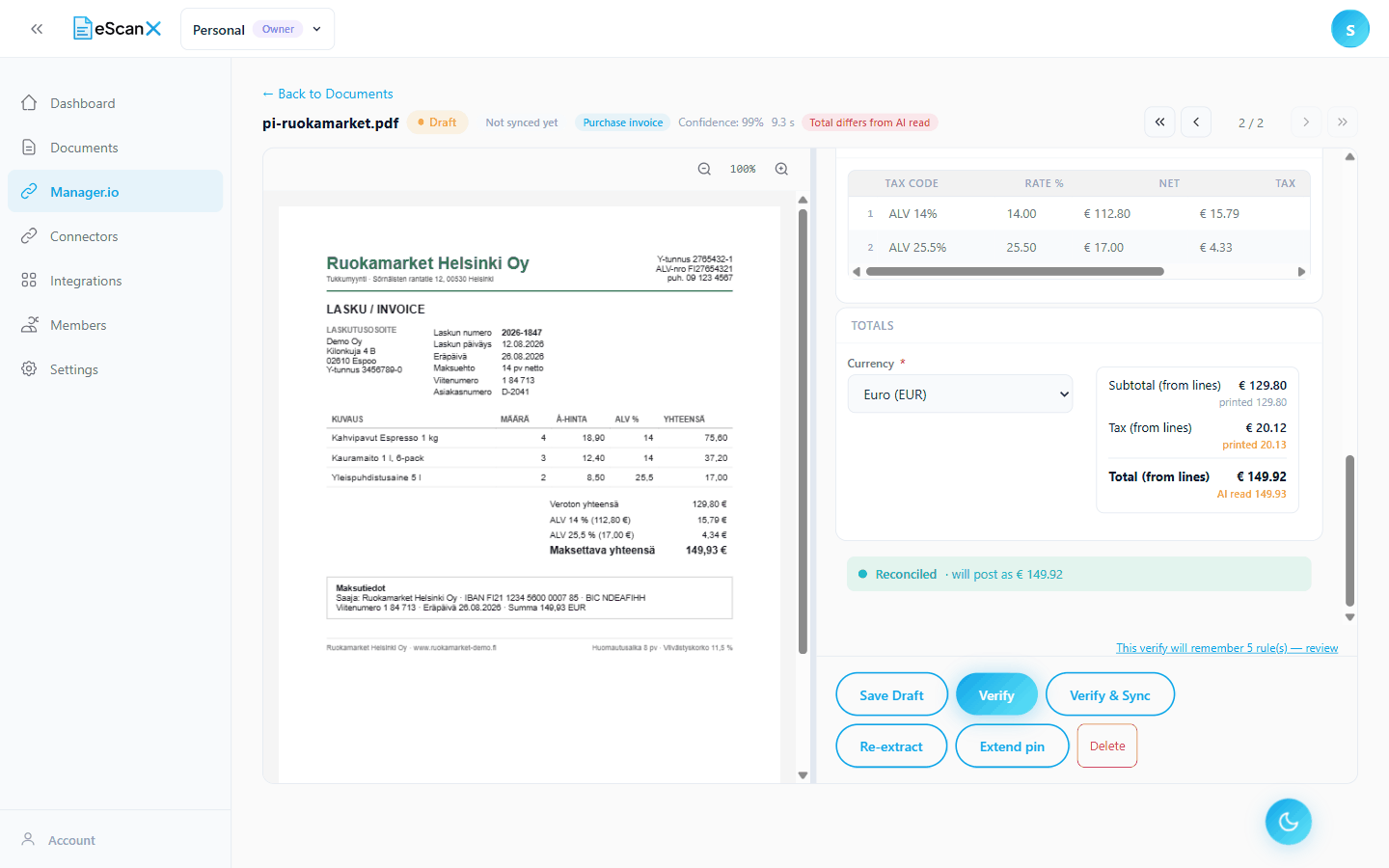
A note like "Total differs from AI read" means the calculated and printed totals differ by a cent or two, usually printing rounding. It does not block verifying. The Small Differences setting books such cents automatically (see Every setting explained).
Tax
If the table shows tax columns, every line tells you what happens to its tax: it either asks for a tax code, or shows a label that says the question is already answered.
| The line shows | What it means |
|---|---|
| A tax code picker | This line needs a tax code, or already has one |
| "Kept in cost" | Foreign tax that cannot be reclaimed; it stays part of the expense |
| "Exempt" | A tax-free line; no code is booked |
| A reverse-charge label | Reverse-charge treatment applies |
| No tax columns at all | This kind of entry has no tax question (for example, paying an existing invoice) |
Tax codes are filled in by rules only. On a new connection every line shows "Select…". Pick the code once for each rate; with "Ask me before creating a rule" on, eScanX proposes a rule such as "When the rate is 14 and the reverse charge is no, use the tax code ALV 14%". From the next document on, the rule fills the code by itself. The last row of the tax picker is Clear, for lines that should carry no code.
With the usual setting ("We reclaim tax only where we're registered"), a document from another country needs no tax codes: every line shows "Kept in cost" and the entry books at the full printed amount. Change a supplier's country on a draft and the lines react at once, before you save. A tax code already on a line is never removed by a country change; your choice stays until you clear it.
Finishing a document

- Save Draft keeps your changes. Nothing else happens.
- Verify confirms the document. Any rules eScanX proposed from your corrections are saved at this moment.
- Verify & Sync does the same and then sends the document to Manager.
After verifying you stay on the page. It shows the final, read-only state with the verifier's name and date in the top bar, and the buttons change to Set to draft, Re-extract, Extend pin and Delete.
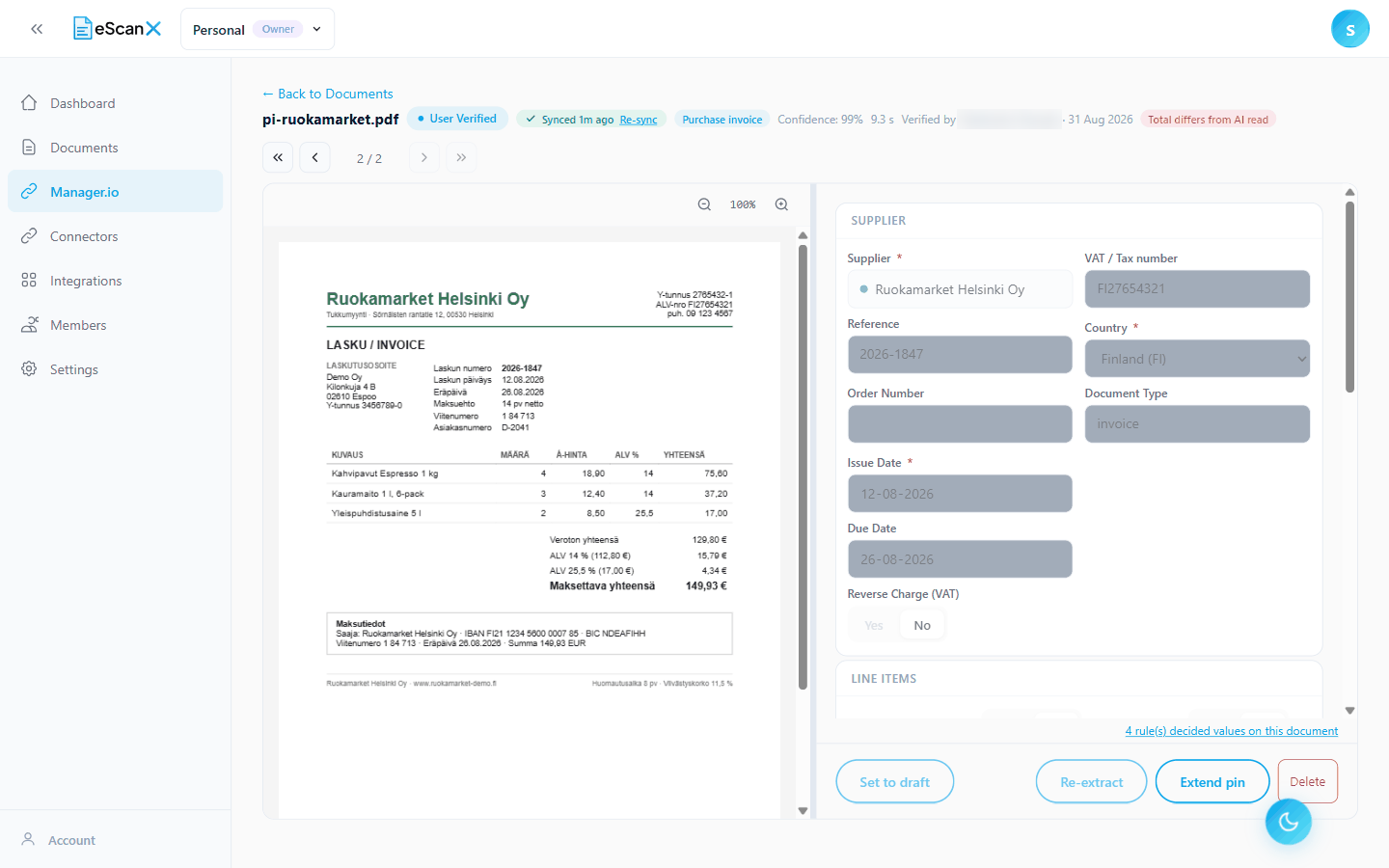
Only Draft and Auto Verified documents can be edited. On a document that has synced, Set to draft and Re-extract are greyed out: the entry exists in Manager now.
Sending to Manager
Syncing sends a verified document to Manager, where it becomes a real entry of the document's entry type. What is sent: the supplier or customer (created from eScanX if it was new), the dates and reference, each line with its account or inventory item and tax code, and the totals. A payment that settles an existing invoice books as a single line no matter how many lines the paper shows, because the invoice already booked them.
The document's header chip shows the sync state. On a synced document the chip offers Re-sync.

| Status | Meaning |
|---|---|
| In progress | Being sent right now, or retrying |
| Success | The entry exists in Manager; its identifier is stored |
| Failed | It did not go through; the error text says why, and retries happen automatically |
- Re-sync is refused while a sync is already running and on documents that are not verified yet.
- If Verify & Sync verifies but the sending fails, you stay on the page with the error shown. The verify still counts, and you can retry the sync alone.
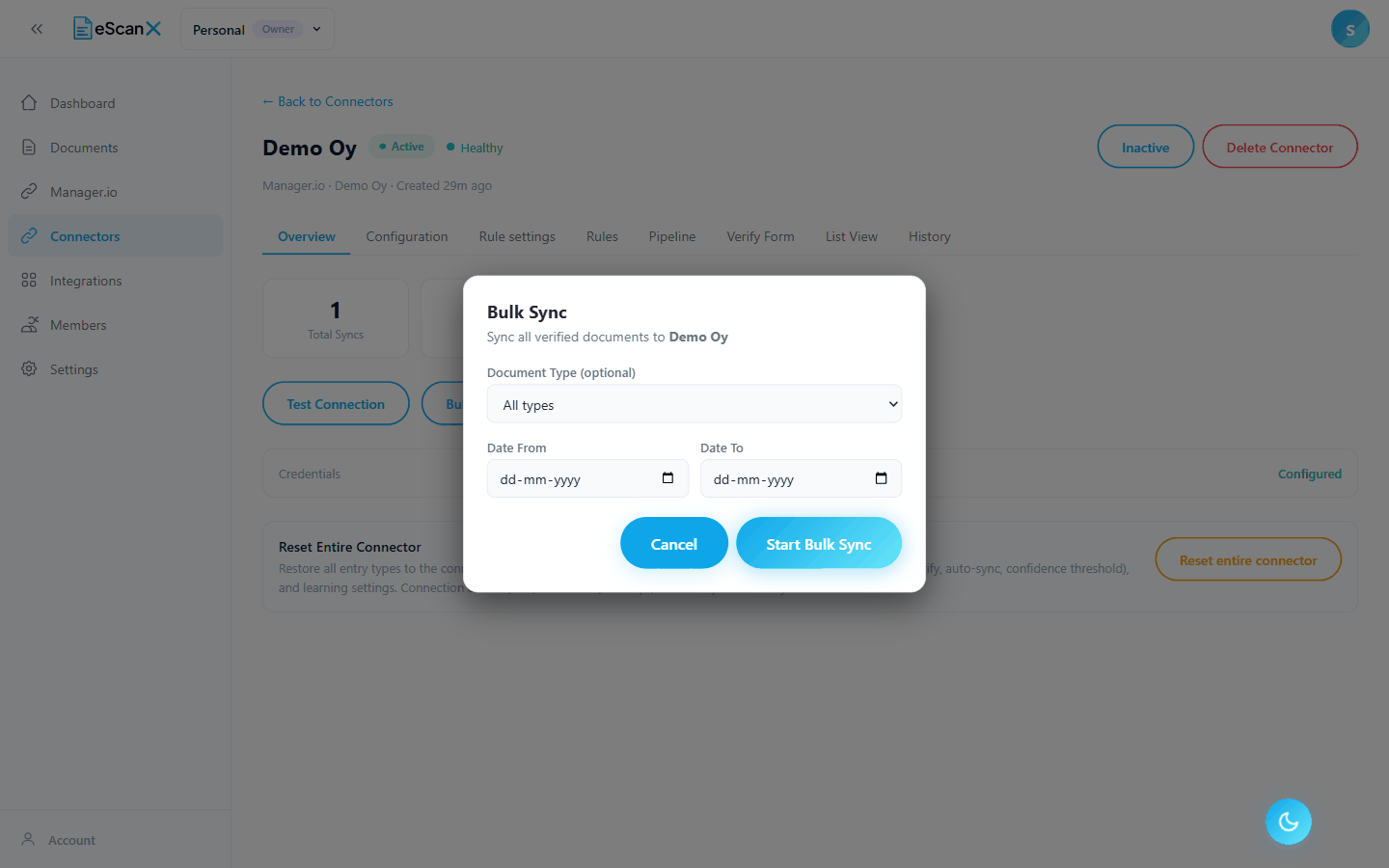
Bulk Sync on the connection's Overview sends every verified document that has not synced yet, with optional filters for type and date.
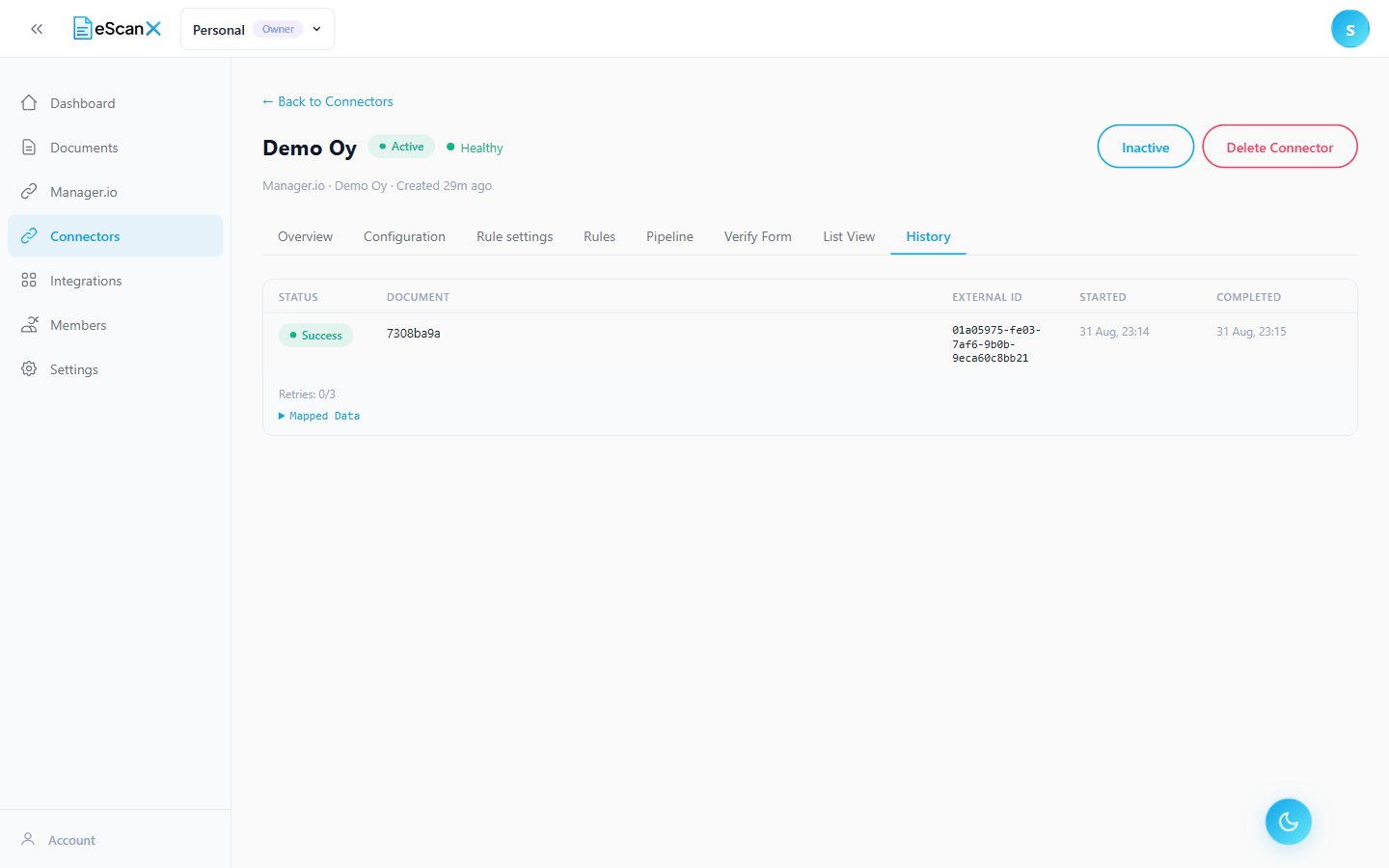
The connection's History tab lists every sync attempt with its status, the document, the identifier Manager gave the entry, the retry count and the data that was sent.
Next: Rules and automation.