Rules and automation
How eScanX learns from your corrections, and how to let documents flow through by themselves.
When you correct a document, eScanX can remember the correction as a rule, so the next document from the same supplier arrives already filled in. Once a supplier's rules exist, the whole journey can run by itself: upload, read, fill in by rules, verify, send to Manager.
How rules are learned
Two principles keep this safe:
- Nothing is remembered without you seeing it. Every proposed rule is shown to you first, in plain words.
- Rules are saved only when you verify the document. While the document is a draft, a proposed rule is an on-screen suggestion. Saving a draft never creates rules.
Pick an account for a line, and a dialog asks "Remember this for next time?" It states the rule in a sentence, shows which line taught it, and lets you adjust the conditions.
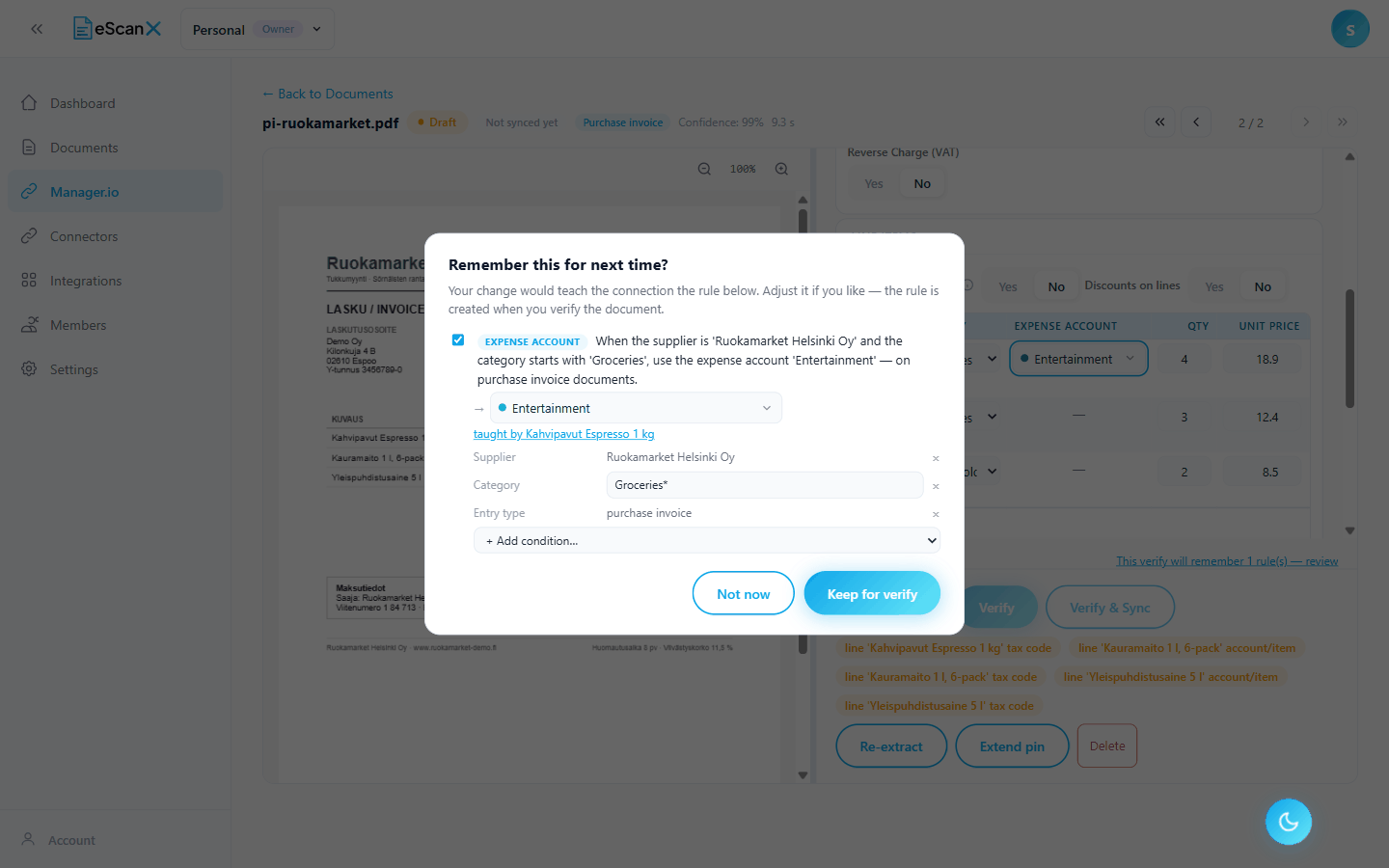
- Keep for verify: the proposal stays ticked and becomes a rule when you verify.
- Not now: the proposal is dropped, and anything it had already filled in for you is undone, except values you typed yourself in the meantime.
- You can edit the conditions, but only into something that is still true of this document. An edit that no longer matches is refused with an explanation.
As soon as you keep a proposal, other lines of the same document that match its conditions are filled in too.
A line above the buttons keeps count of what this verify will remember. Click it to review each proposal with its sentence, its target and its editable conditions.

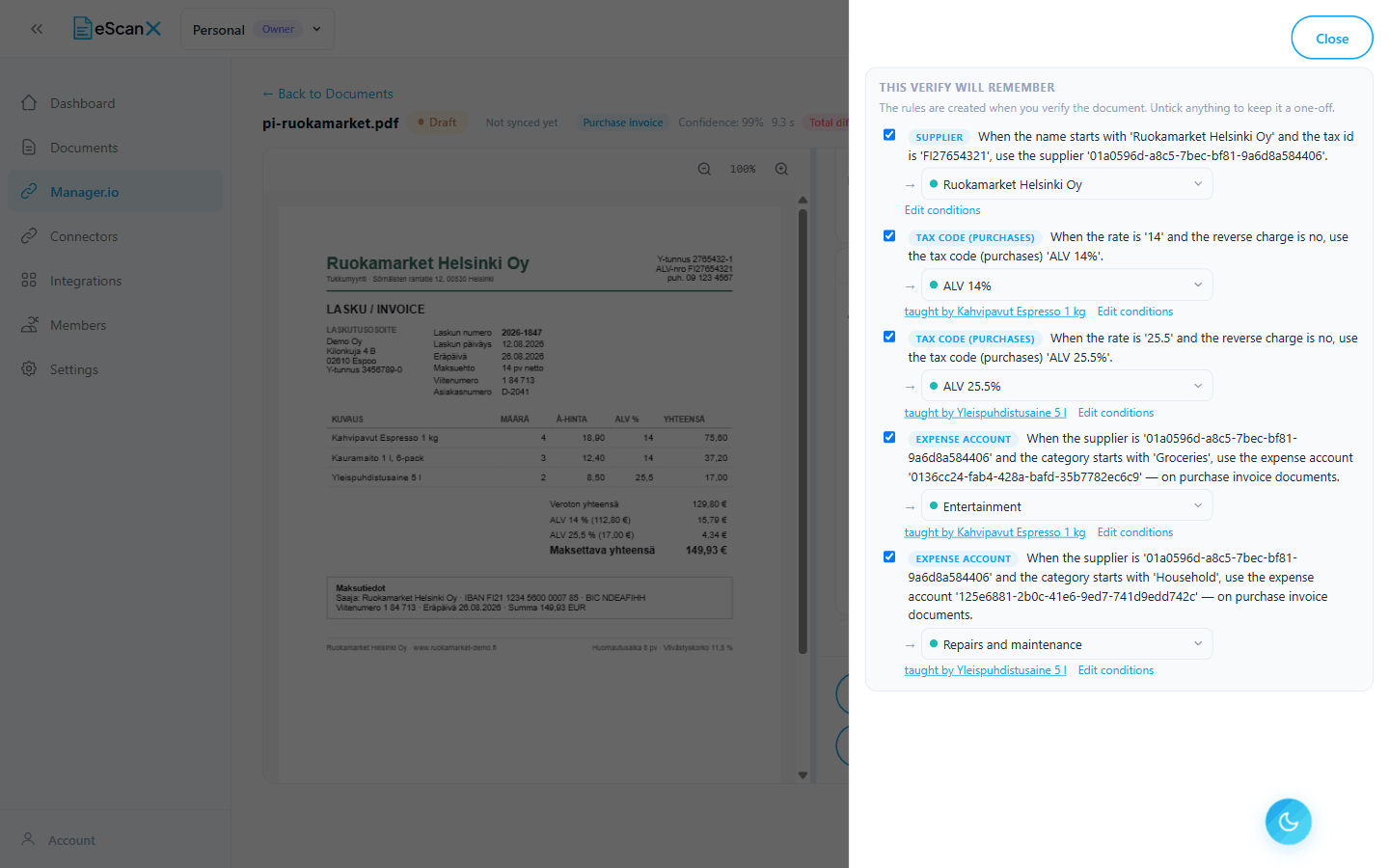
If two lines with the same details chose different accounts, no rule can express that. The panel marks such a row Conflict, names the other line's choice, and does not save it. To resolve it, edit that row's conditions (for example, add its description) so the two lines differ.
The reward
Upload another document from the same supplier and it opens fully filled in: supplier linked, accounts chosen, tax codes set, no orange notes, the Verify button already on. A line above the buttons reads "N rule(s) decided values on this document". Click it to see which rule filled which field.
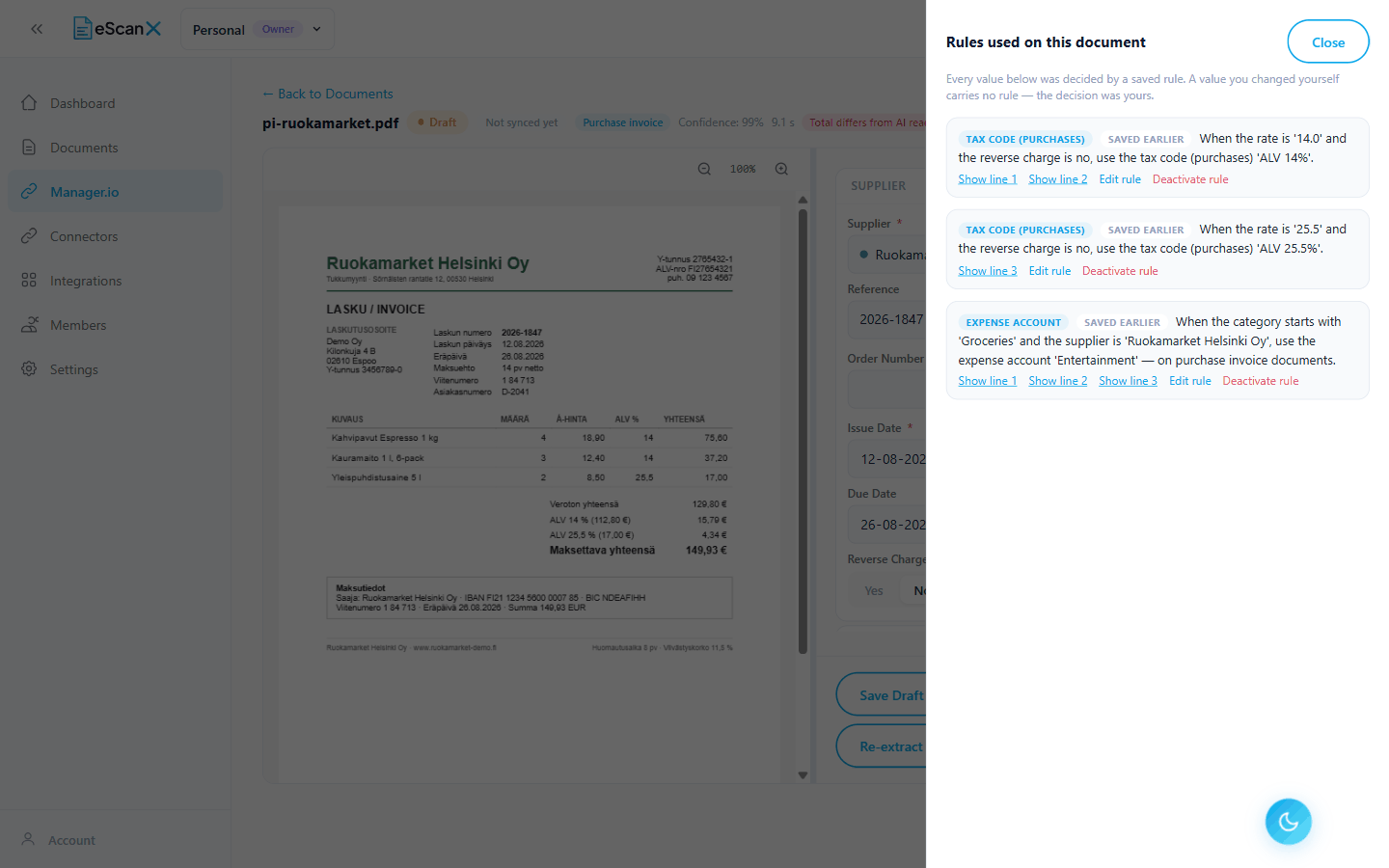
Only saved rules appear there. A filled field with no rule listed was decided some other way, for example typed by a person.
Managing rules
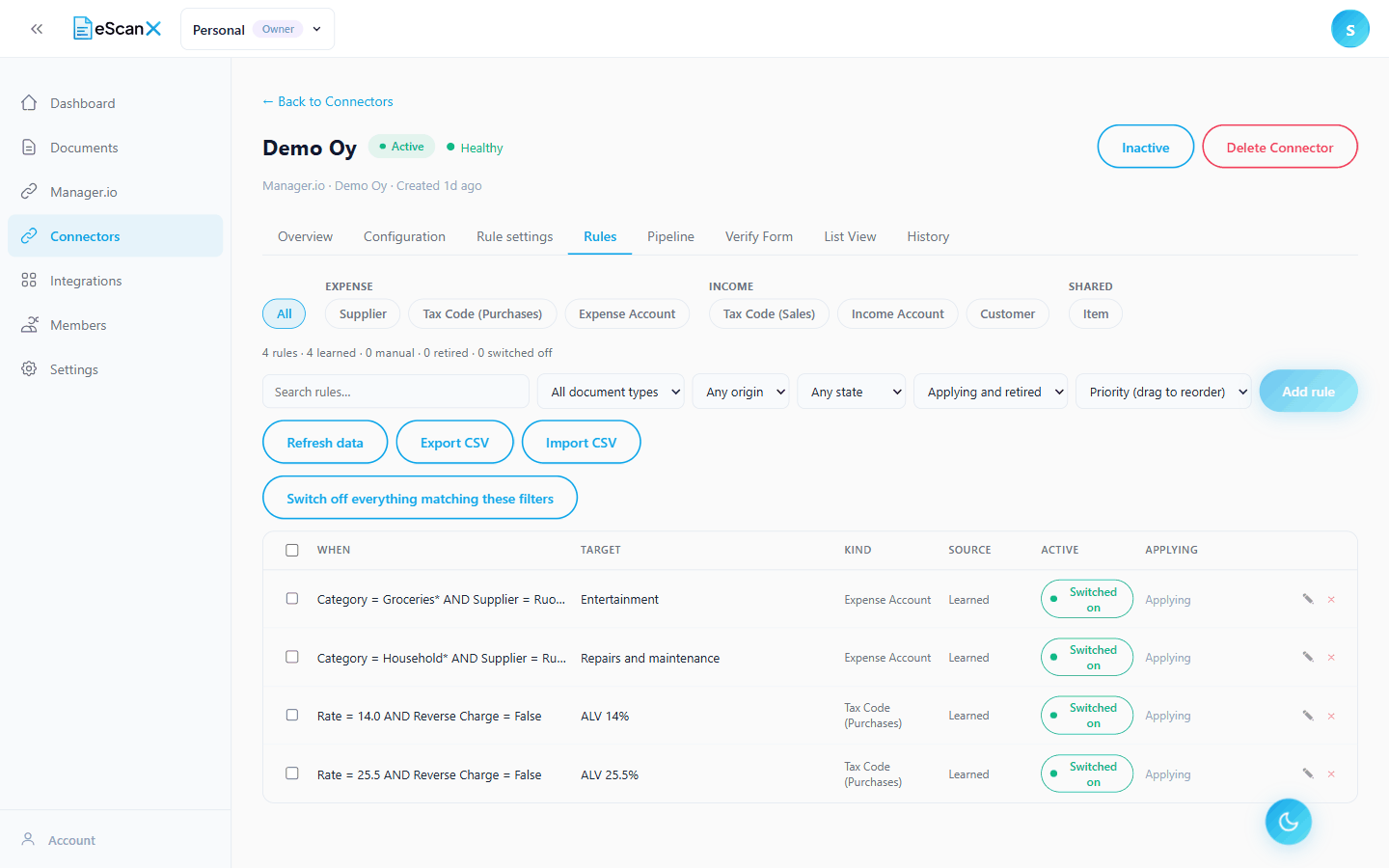
All learned rules live on the connection's Rules tab. Search them, edit them, drag them to change priority (while the list is sorted by priority), or switch one off. A switched-off rule stops applying but is kept.
Whether rules are proposed at all is a setting. When I correct a document can be "Ask me before creating a rule" (the dialog above), "Create rules automatically", or "Never create rules". Existing rules keep applying whichever you choose. Below it, three tick lists decide what a rule's conditions may look at. Fewer ticked boxes means broader rules. See Every setting explained.
The fully automatic flow
Automatic verification uses the same checks as the Verify button: every supplier, account and tax code must be linked, and the money must add up. A document that fails any check stays in Draft for a person to look at. Automation never confirms something a person could not have confirmed.
The switches
On the connection's Pipeline tab, pick the entry type and open Automation:
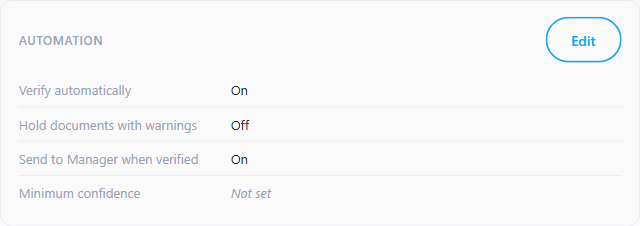
| Setting | In plain words |
|---|---|
| Verify automatically | The main switch |
| Minimum confidence | How sure the reading must be. At 0.9, a document read with 87 percent confidence stays in Draft. "Not set" means no limit |
| Hold documents with warnings | If the reading produced any warning, keep the document in Draft. On by default |
| Send to Manager when verified | Sync immediately after a successful verify |
Why a document stays in Draft
Three settings decide most cases:
- The warnings hold. A one-cent difference between the printed total and the calculated one counts as a warning. With "Hold documents with warnings" on, that alone keeps the document in Draft. Switch it off if you accept such documents, or keep it on and check them by hand.
- The money must add up. A one-cent difference is only booked away when Small Differences: Absorb into account is set. Without it, the document waits in Draft, and the connection's Overview shows a warning about exactly this.
- Rules need somewhere to write. With Inventory enabled on, lines are matched to inventory items, and rules that choose expense accounts cannot fill them. For a supplier whose purchases are expenses, switch Inventory enabled off for that entry type.
On the manual path you resolve all three with your hands without noticing. So "manual verify works but auto-verify keeps holding the same document" is almost always one of these settings.
The successful run
With all three addressed, the next upload goes through untouched: read, every line filled by the learned rules, the cent absorbed, status Auto Verified, and, with "Send to Manager when verified" on, sent.
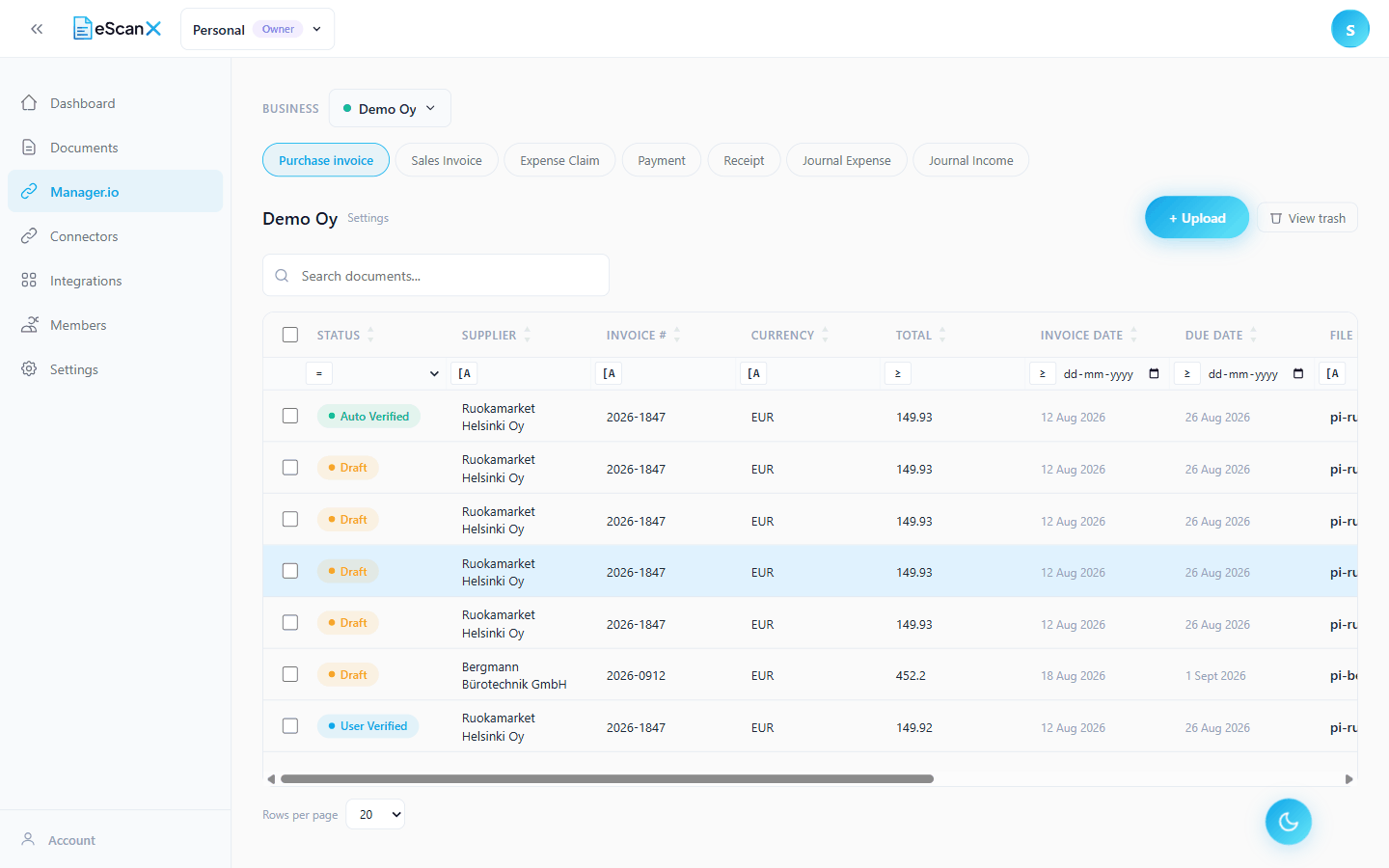
The document shows "Auto-verified" where a verifier's name would be. Such documents can still be opened, corrected and re-verified by hand.
Checklist
- Teach the rules first. Automation without rules holds everything.
- Pipeline tab, your entry type, Automation: switch Verify automatically on, decide about Minimum confidence and the warnings hold, switch Send to Manager when verified on.
- Small Differences: pick an Absorb into account.
- If this supplier's purchases are expenses, not stock: switch Inventory enabled off for the type.
- Upload, and touch nothing.
Next: Every setting explained.