Connect Manager.io to eScanX
Create the connection: API address, token, entry types, and the first connection test.
One connection links eScanX to one Manager business. Documents you verify in eScanX become purchase invoices, sales invoices, expense claims, payments, receipts or journal entries in that business.
Before you start
You need two things from Manager:
- The business's API address in Manager Cloud (the web address you open the business at). Manager Desktop is not supported: it runs only on your own computer, where eScanX cannot reach it.
- An API token for that business, created inside Manager. It works like a password. eScanX stores it encrypted and never shows it again.
You also need to be an owner or manager of the eScanX workspace.
Step 1 — open the catalog
In your workspace, open Integrations and click Add Connector on the Manager.io card.
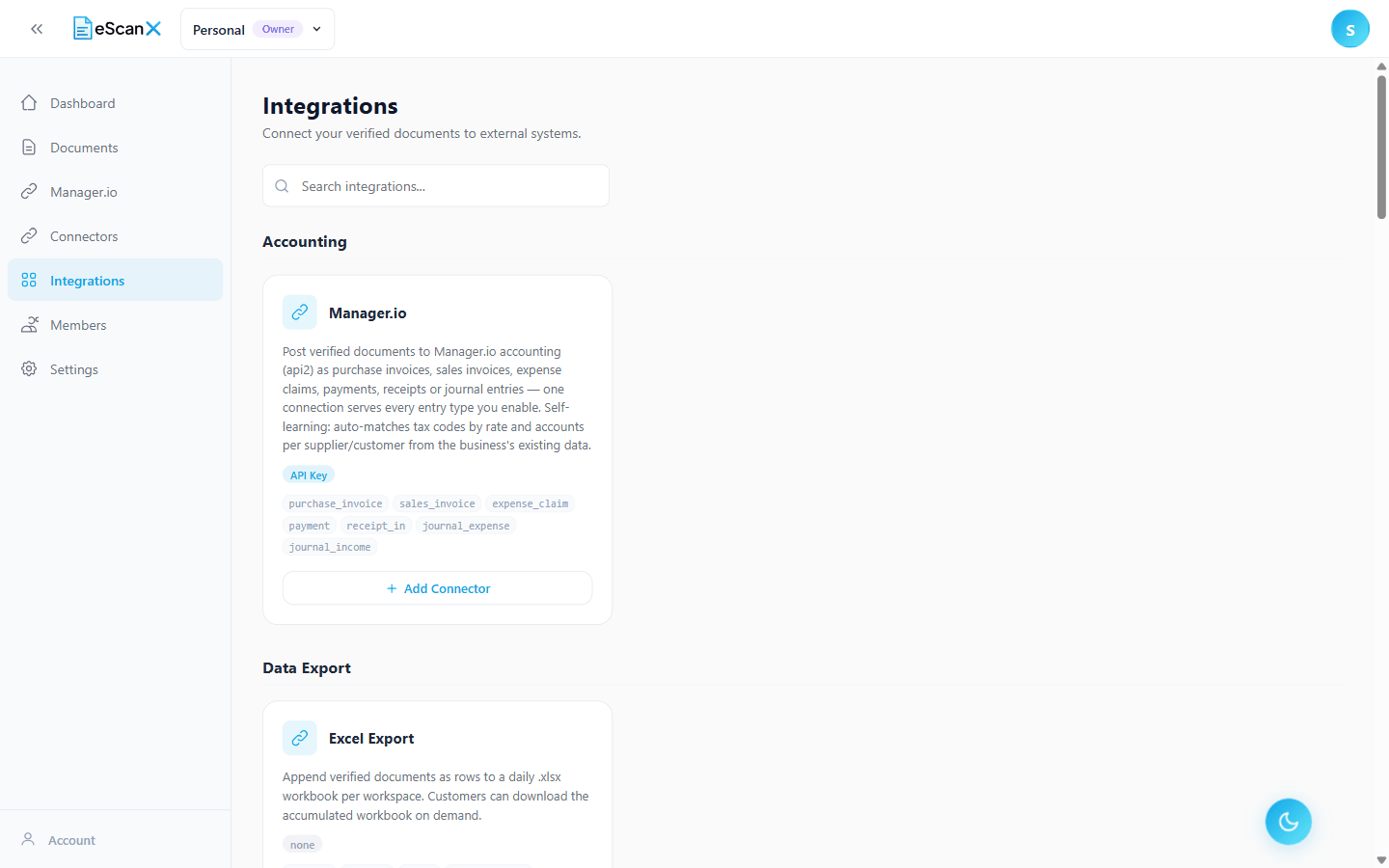
A four-step setup opens: Choose Type, Connect, Configure, Review.
Step 2 — Connect
Enter the address and the token. eScanX reads everything else from Manager.
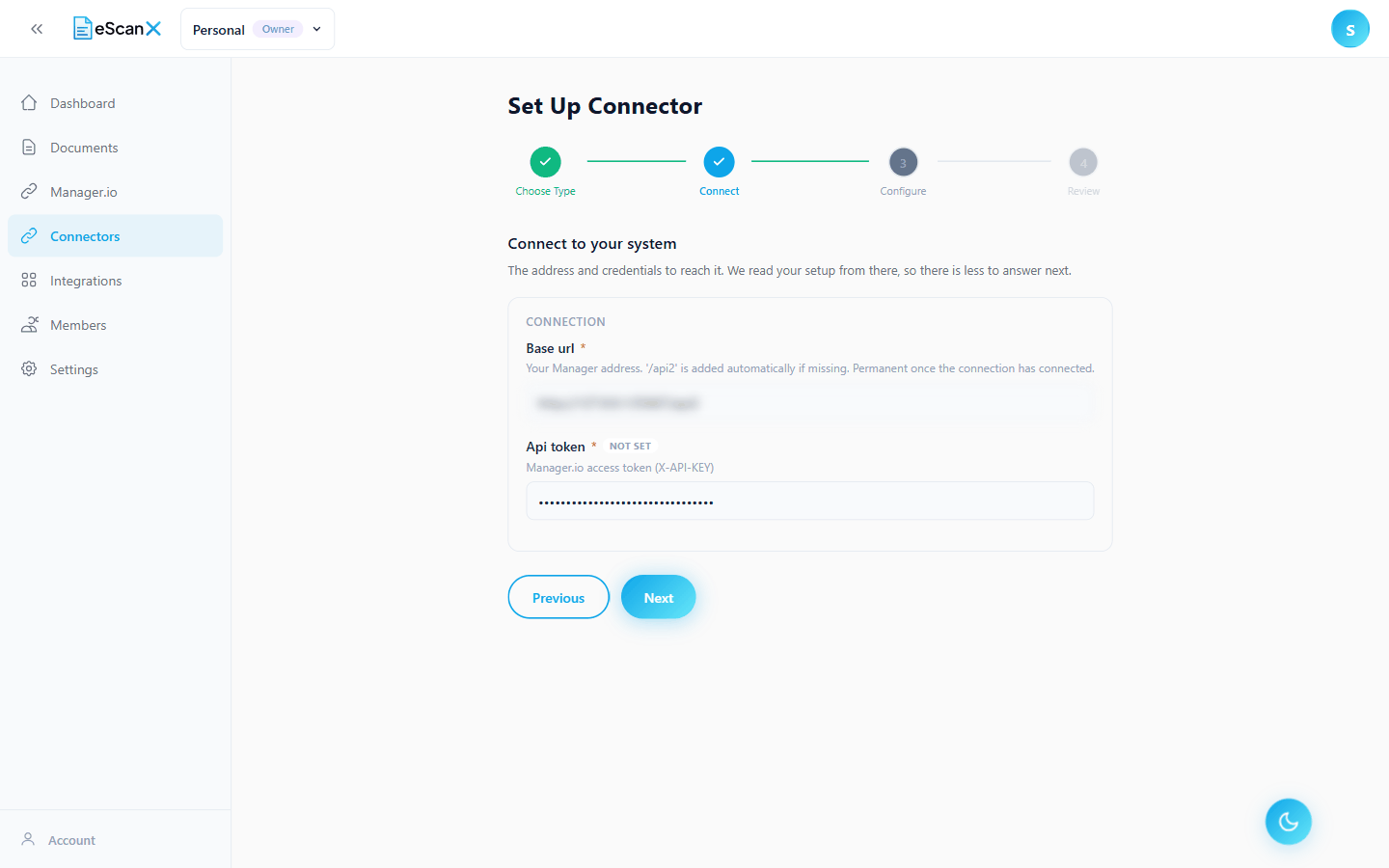
The address becomes permanent after the first successful connection. To work with a different business later, create a second connection.
Step 3 — Configure
eScanX now contacts Manager. On success you see Connected to: with the business name, and the form is already partly filled in:
- the connection name, suggested from the business name
- the base currency, read from Manager
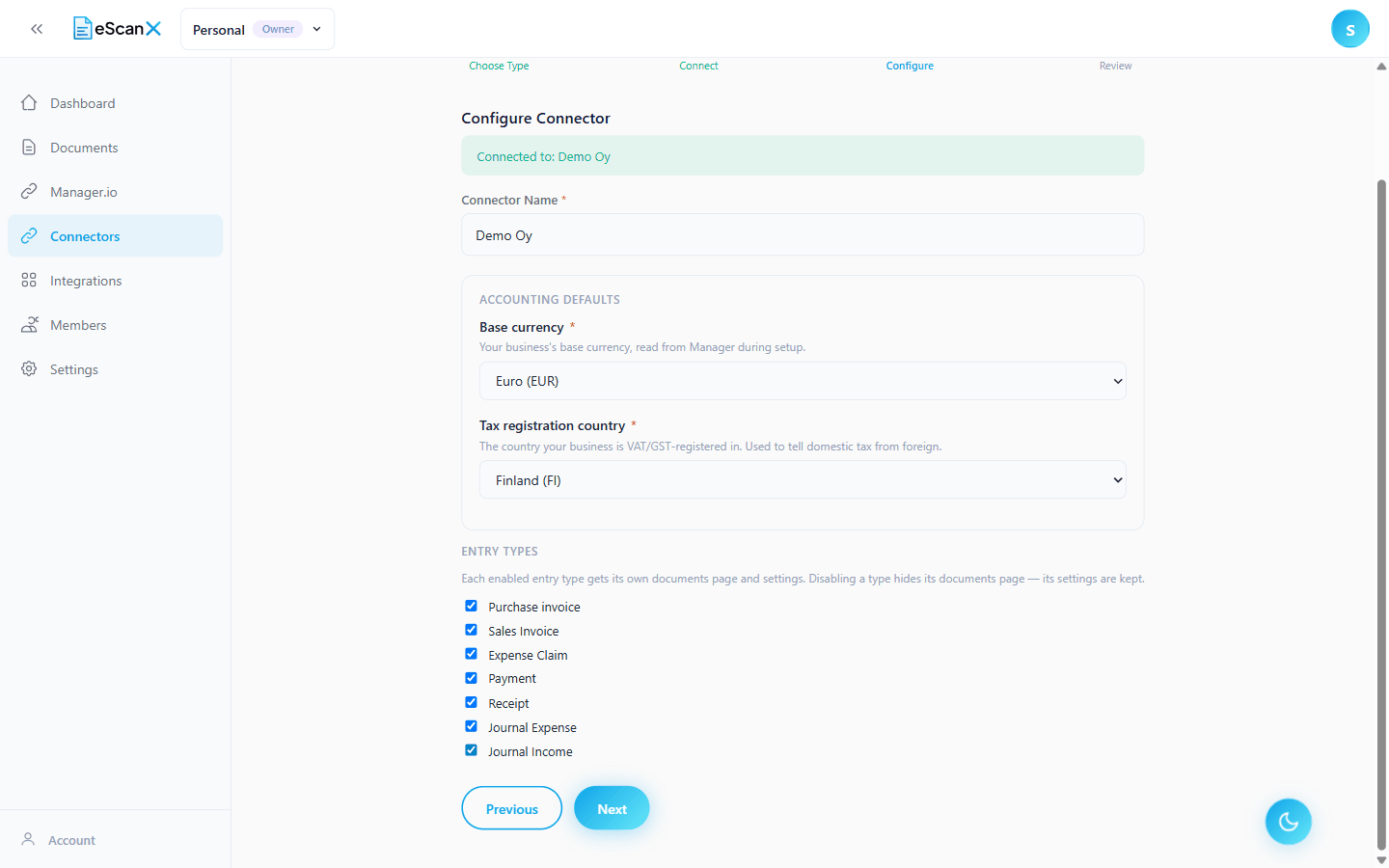
Two choices are yours:
- Tax registration country — the country your business is VAT-registered in. eScanX uses it to tell domestic tax from foreign tax.
- Entry types — tick the kinds of document this business will receive. Each ticked type gets its own tab on the documents page. At least one must stay ticked. You can change this later.
If Manager cannot be reached at this step, setup still continues. Create the connection and run the connection test afterwards.
Step 4 — Review and create
Check the summary and click Create Connector.
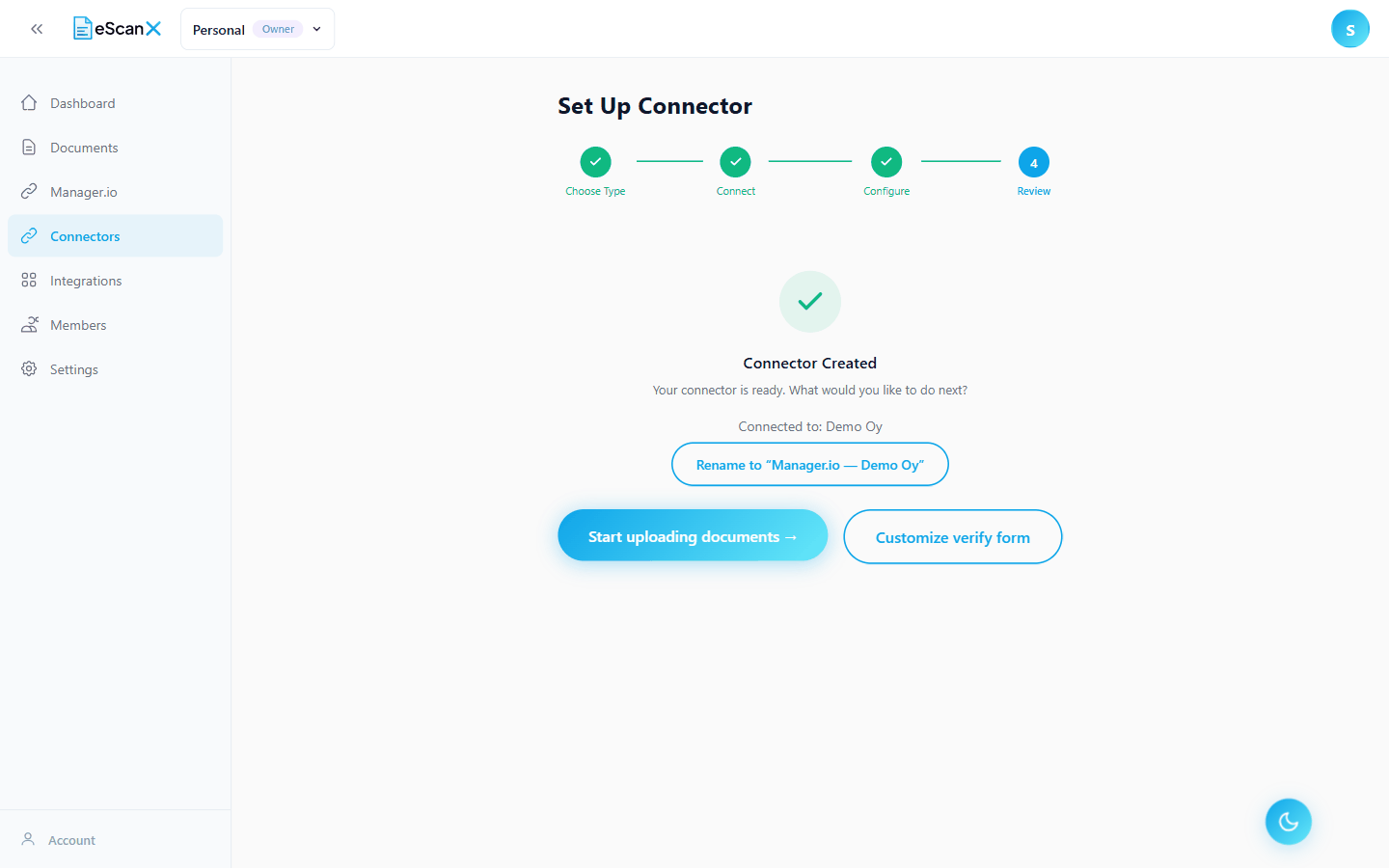
After creation, a panel offers three shortcuts: rename the connection, start uploading, or adjust the verify form first.
Step 5 — run one connection test
Open the new connection. Its health shows Unknown until the first test has run.
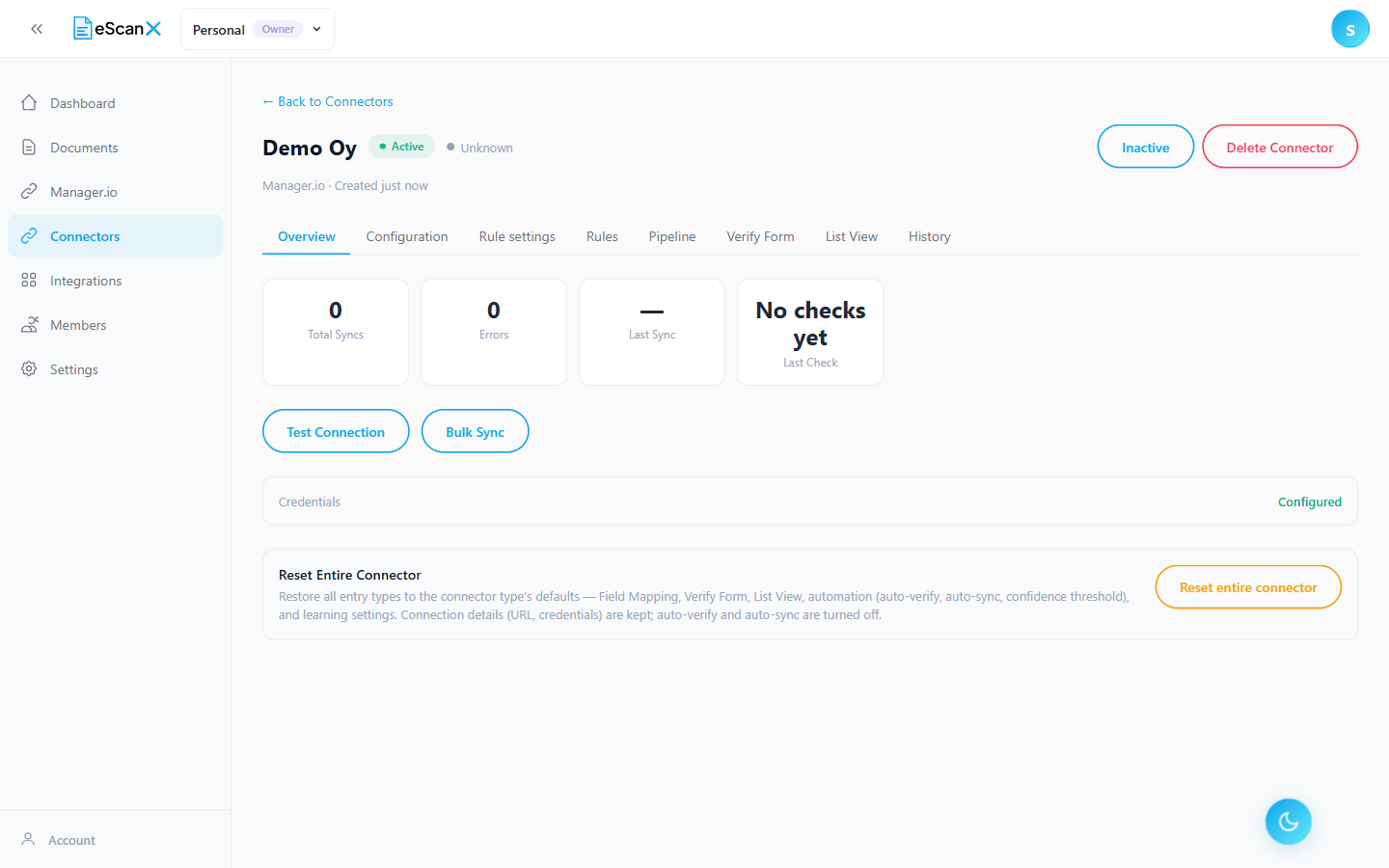
Click Test Connection once. This sets the health to Healthy and records the business's official name on the connection.
Good to know:
- Connection names must be unique within the workspace, and capital letters do not make a name different.
- If another connection already points at the same business, eScanX warns you but lets you continue.
The connection page
Open the connection from Connectors. It has eight tabs.
| Tab | What it holds |
|---|---|
| Overview | Health, sync counters, Test Connection, Bulk Sync, Reset entire connector |
| Configuration | Connection-wide settings, one section at a time |
| Rule settings | Whether eScanX asks before creating a rule, and what a rule may look at |
| Rules | Everything the connection has learned; search, edit, switch off |
| Pipeline | Settings per entry type: automation, defaults, tax handling |
| Verify Form | The layout of the fields you see when checking a document |
| List View | The columns of the documents table |
| History | Every sync that has run, with its result |
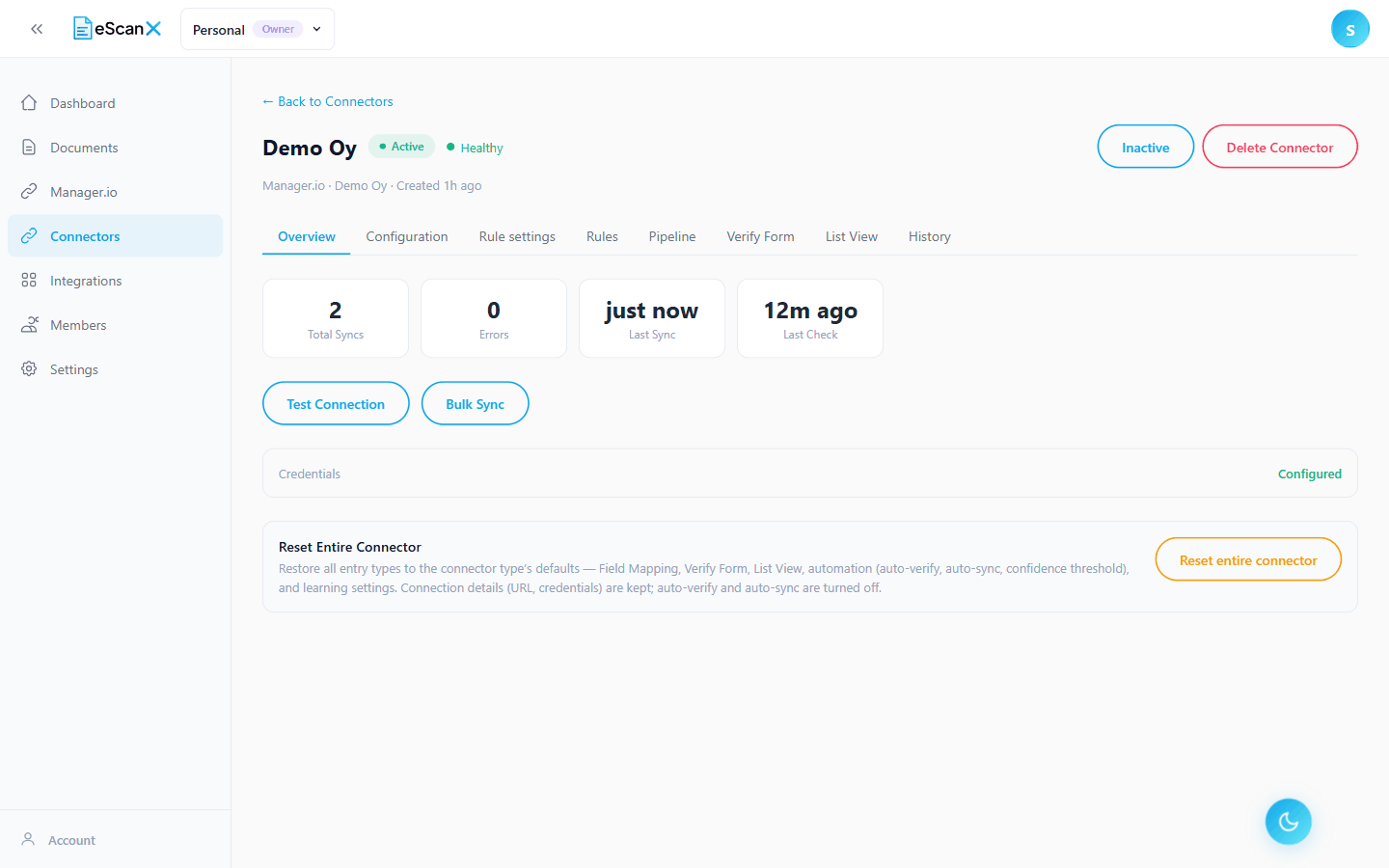
Two reading aids on the settings forms:
- A grey Default label next to a value means it comes from the standard settings. No label means it was set on this connection.
- A setting shared by several entry types shows a note naming the other types it affects.
Reset entire connector puts every entry type back to its defaults (form layouts, automation, rule settings). The address and token are kept.
There is no Field Mapping tab on a Manager connection. Manager works with forms and rules instead of column mapping.
Next: From upload to Manager entry.